Advanced Work Orders
AssetAsyst® offers two types of work orders: Basic and Advanced. Advanced work orders are useful for performing routine and recurring maintenance.
Advanced Work Order Tree
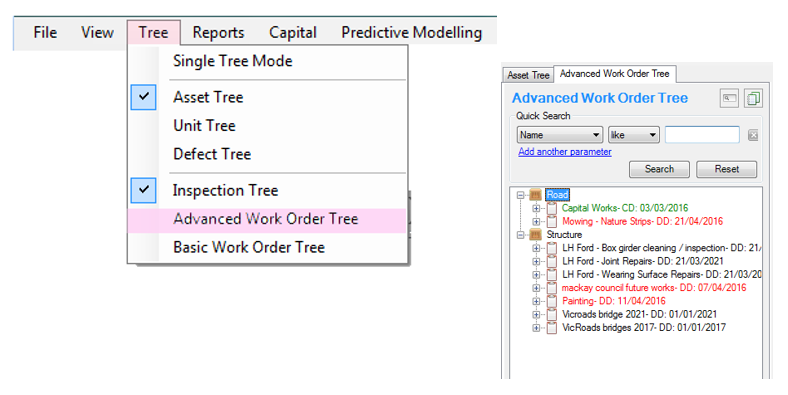
The Advanced Work Order Tree can be used for managing your defect rectification specifically when maintenance crews are scheduled to perform certain types of maintenance along set routes that will result in specific defects being rectified.
For example, if routine maintenance occurs for assets ‘A’, ‘B’ and ‘C’ and the maintenance is for fixing defect types ‘X’, ‘Y’ and ‘Z’, using AssetAsyst® you will be able to close out multiple defects quickly by using the Advanced Work Order functionality.
New Advanced Work Order
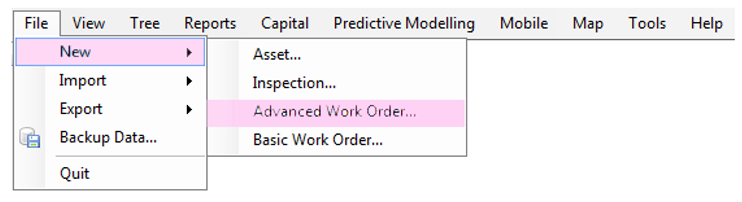
To create an advanced Work Order item, click File > New > Advanced Work Order menu item.
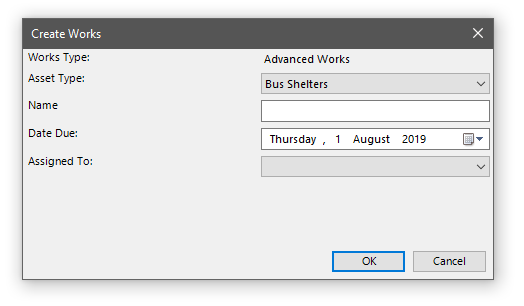
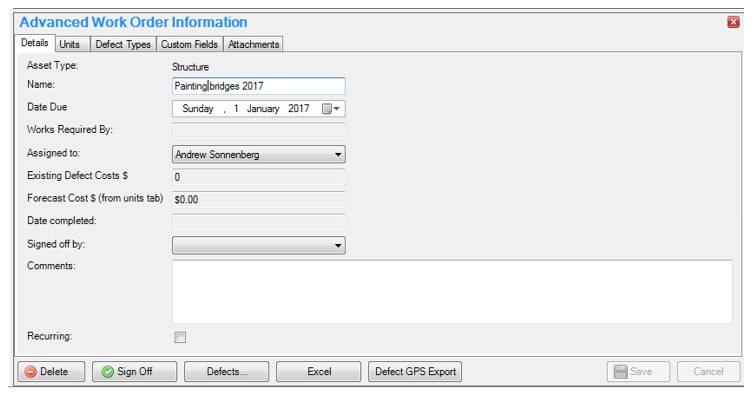
Choose the Asset Type and fill out the details on the screen and click OK.
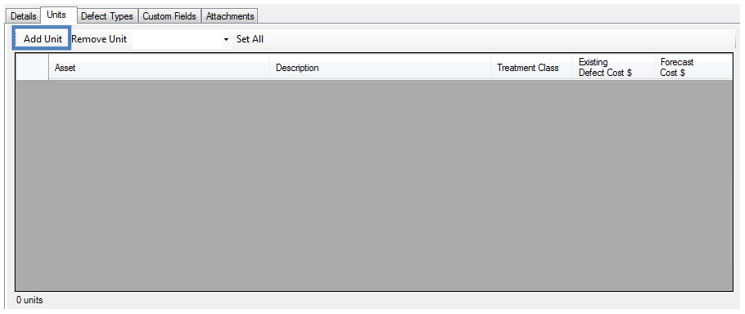
Next, select the units that are to be included in the route. Open the units tab and click the Add Unit button.
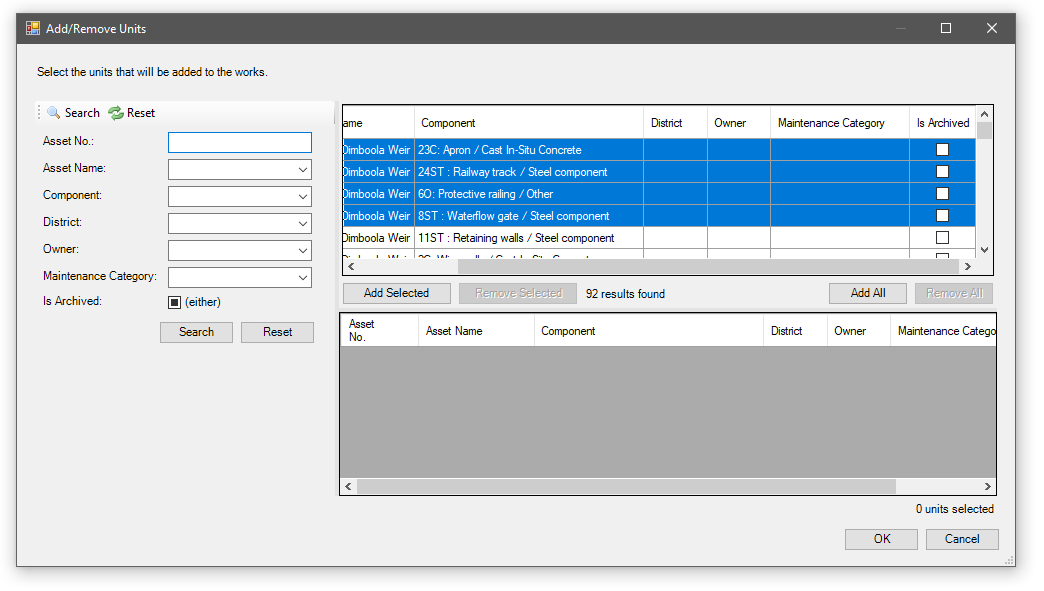
Use the filters on the left to select the units you want. Then add them using the ‘Add Selected’ or ‘Add All’ buttons.
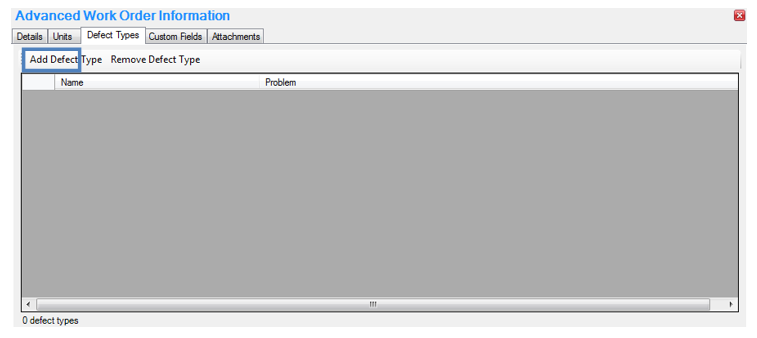
Then, select the Defects Types that will be rectified during the maintenance event.
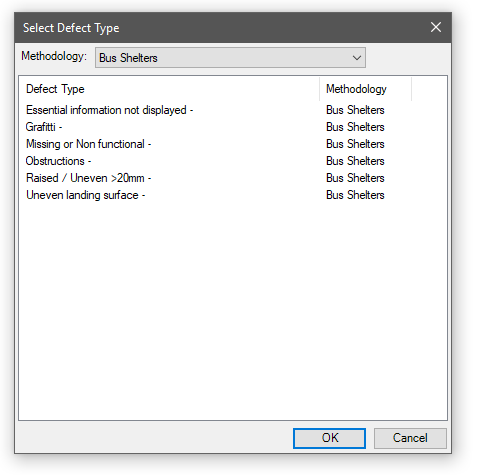
Once units and defect types have been added, AssetAsyst will automatically find all defects that match.
There are some details that can be entered in the units tab. AssetAsyst will automatically calculate the estimated cost of any existing defects on the work order, for each unit. You can manually enter additional cost in the Forecast $ column. For bridge assets, you can specify a condition for the unit after the maintenance has been completed.

Sign Off
To indicate a defect has been rectified, click the Defects button and enter the Date Fixed and Actual Cost of rectification.
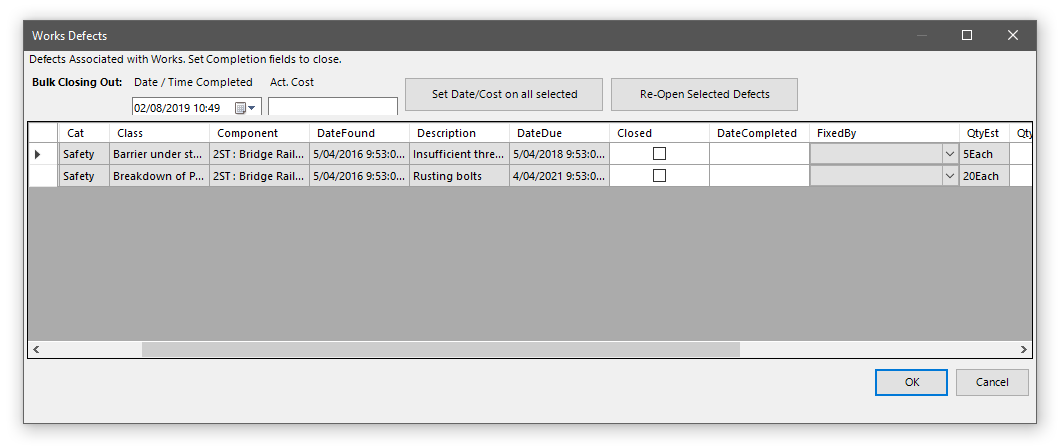
To bulk close defects, select some defects using the row header. Then enter a date/time and cost into the control at the open, then click the “Set Date/Cost on all selected” button.