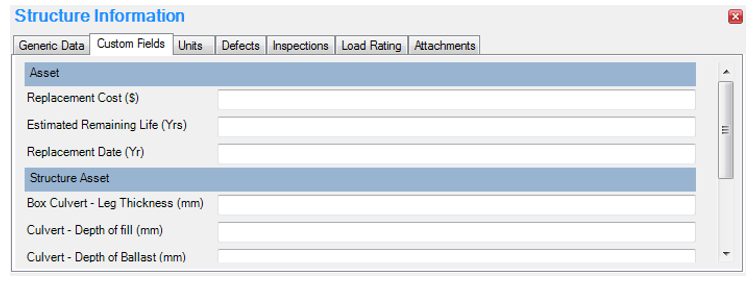
Custom Fields
Users in AssetAsyst® are able to create custom fields for assets, units, defects, work orders and inspections.
These custom fields enable the user to store additional information relating to assets/units/defects/etc. that may not be able to be input in any of the standard fields provided in the software.
To create a custom field the user clicks the Tools menu and then selects Custom Fields.
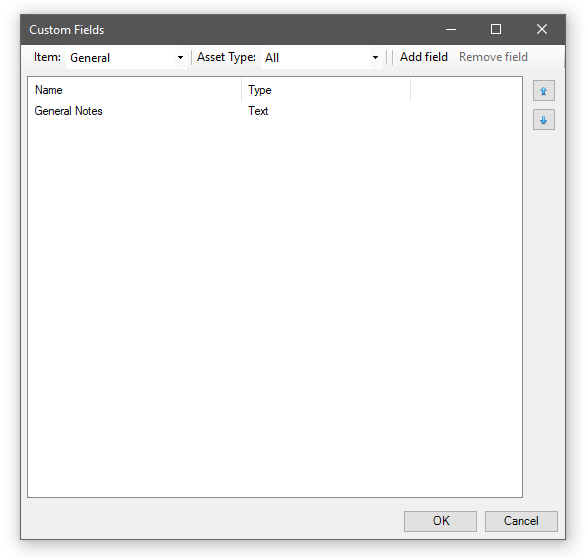 View and edit the custom fields specified for a particular item type and asset type, using the drop-down selectors.
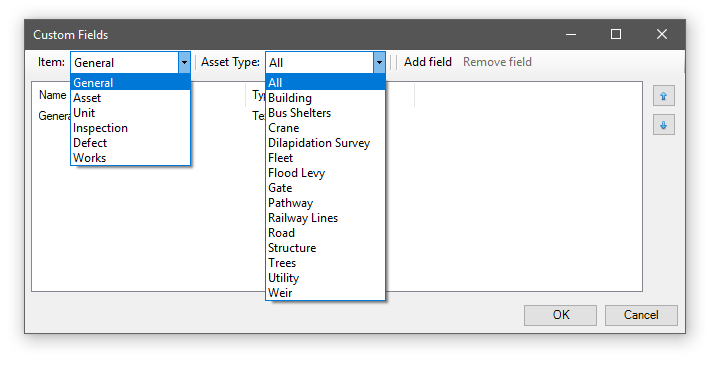 To create new custom field, click the Add Field button.
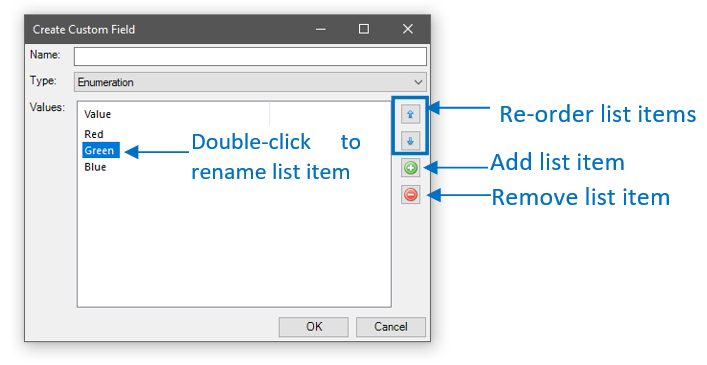
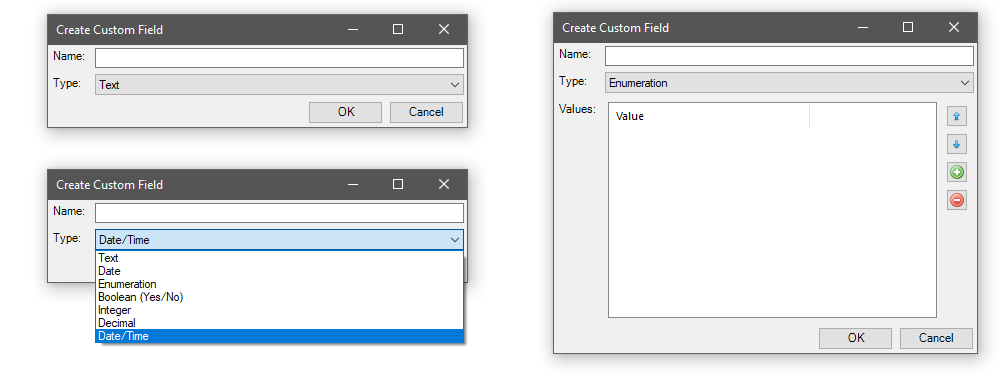 The user can then specify the name of the field, and the field type. The available field types are “Text”, “Date”, “Enumeration” (Drop down list), “Boolean” (yes/no), “integer” and “decimal”.
For the enumeration type, a list of values also needs to be provided.
 You can create up to 80 custom fields for a given group. Once created the custom field with appear in the Custom Fields tab of the relevant item.