
Filtering
Filters can be used to search and display information in the map window about a defect an asset, or an activity. Each tree can be filtered independently. At the top of a tree are the quick search options relating specifically to the tree being viewed.
In the map, records matching the filter applied to any of the Asset, Unit or Defect tree appear with a blue outline or border.
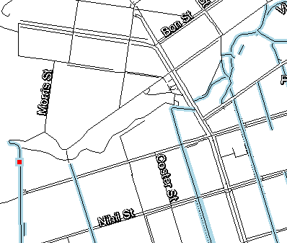
Filter Scenario
Display in the Asset Tree all road assets that contain a certain district and have a certain surface and maintenance category rated.
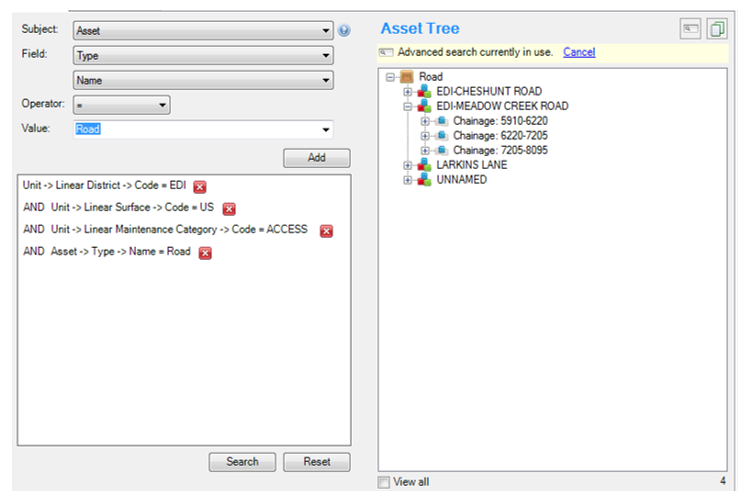
- Make sure the Asset Tree is in the active display.
- Click on the button in the top right of the Asset Tree with the magnifying glass
- Advanced Search will now be open on the left side of the screen
- In the Field drop down choose Type
- In the Value drop down type or choose Road
- Click Add button
- Change Subject to Unit
- In the Field drop down choose Linear District
- In the Value drop down type or choose a value
- Click Add button
- In the Field drop down choose Linear Surface
- In the Value drop down type or choose a value
- Click Add button
- In the Field drop down choose Linear Maintenance Category
- In the Value drop down type or choose a value
- Click Add button
- Finally, click Search button
- The results of the filter will appear in the tree and if the filter is applied to the Asset, Unit or Defect tree the filtering will be adjusted in the map.
To remove a parameter click on the red X next to the parameter.
To reset and show the full tree, click the Reset button.