
Depreciation and Finance Module
AssetAsyst helps you to manage the financial aspect of your assets. The Asset Information form contains a financial tab. This tab contains information relating to replacement cost, estimated life, and depreciation.
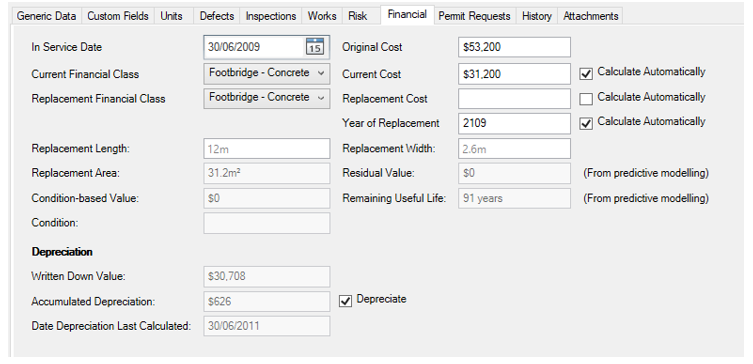
Depreciation
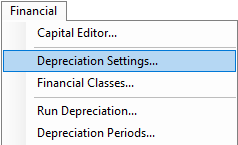
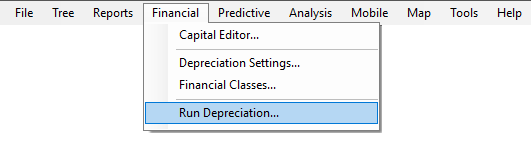
The AssetAsyst depreciation module operates at the asset level for point-based assets such as bridges, culverts and custom point assets. The module operates at the segment level for linear assets such as roads and pathways. To launch the depreciation wizard, Select Run Depreciation from the Finance menu.
Depreciation Options
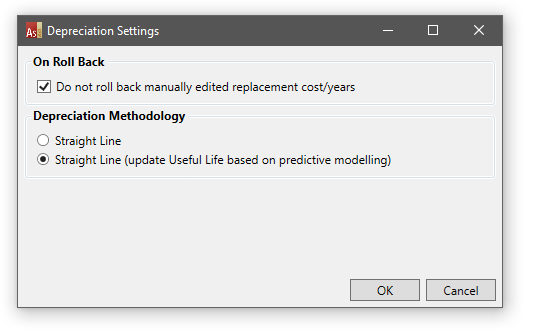
This screen lets you select a number of options and settings related to depreciation.
Structure classes
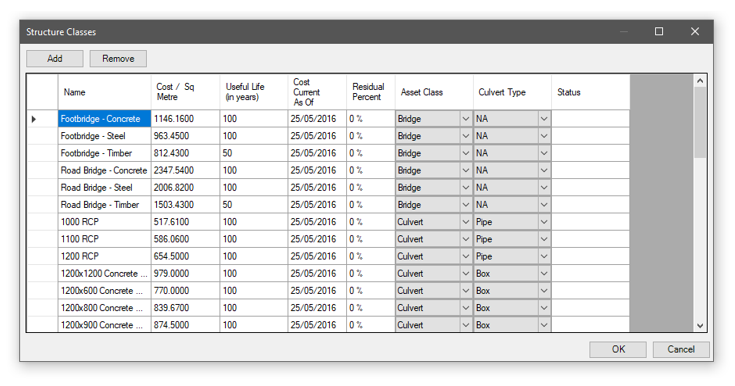
Structure classes define the cost and useful life for various types of structure. A structure class belongs to an asset class – either Bridge or Culvert. Culvert structure classes specify whether they are Pipe culverts or Box culverts. These settings are important as they all impact the algorithm for valuation of a structure.
Depreciation Wizard
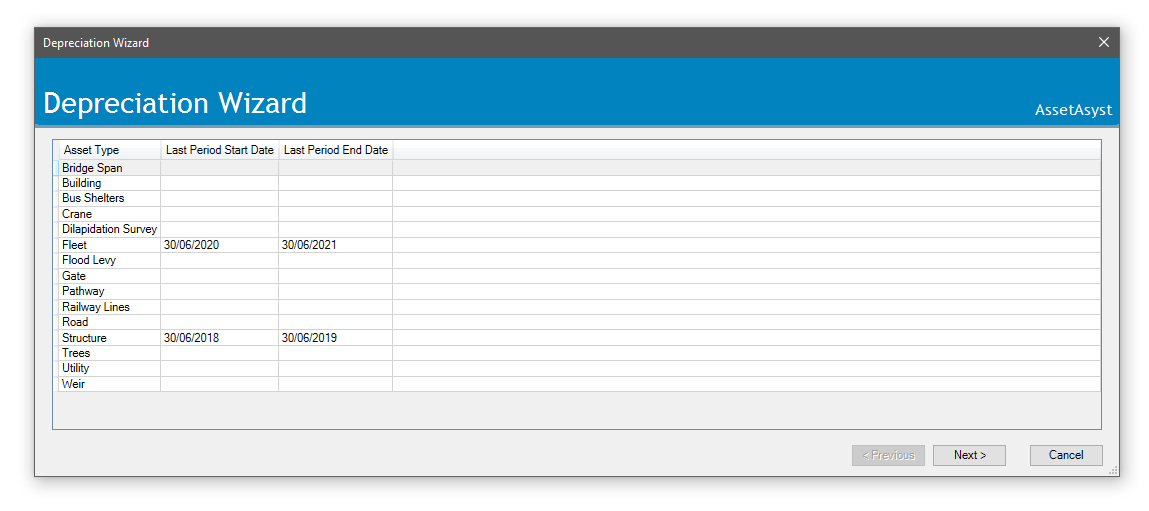
 The wizard will walk you through several steps.
The fist step is to select an asset type.
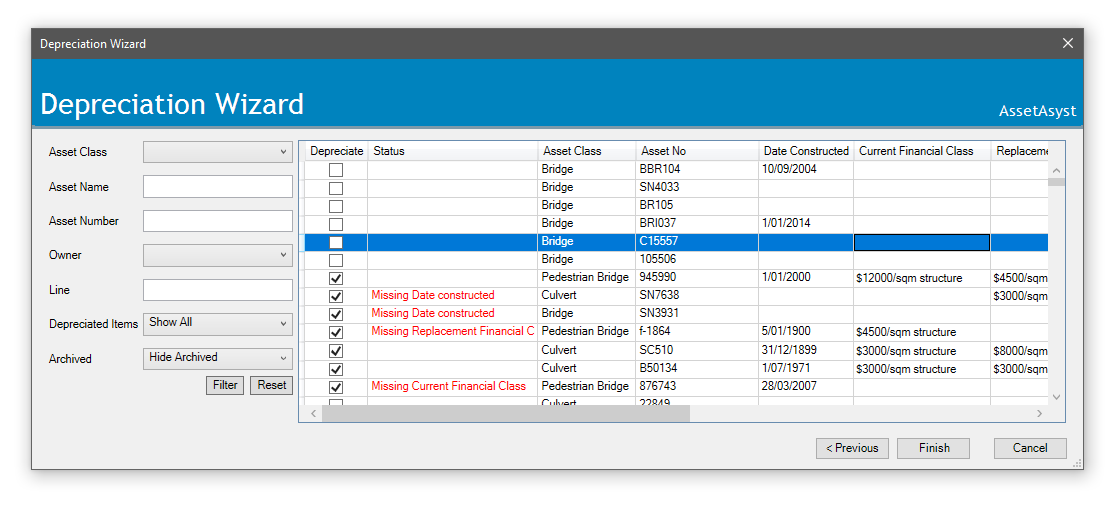
Next, you need to select or review which assets will be depreciated. Only those assets that are ticked as "Depreciate" will be included. If an asset is selected for depreciation, there are several data fields that need to be filled in. If these are not filled in, the software will prompt you to correct them. This can all be done from within this page.
 Click Finish. AssetAsyst will run a revaluation on the selected assets.
 If some assets cannot be revaluated, the software will inform you of this, but the depreciation process will continue.
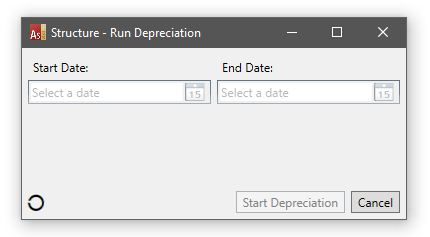
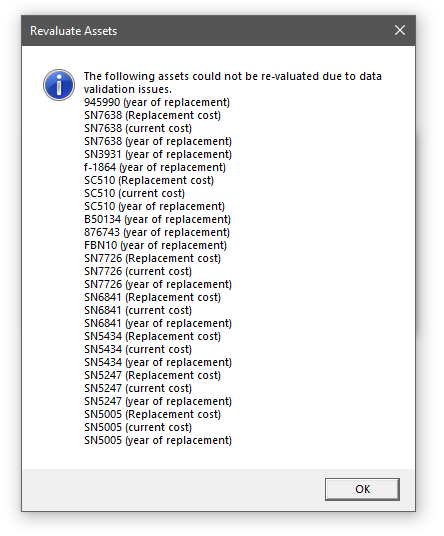 Once revaluation is complete, AssetAsyst will determine the appropriate start and end dates for this period. If the software is unable to suggest a start date, the controls will be editable.
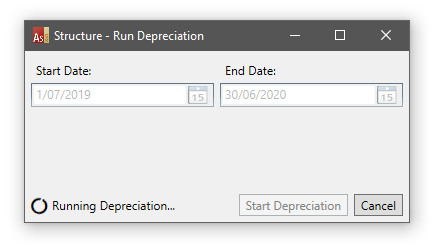
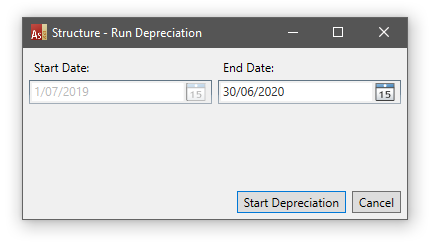 Click Start Depreciation.
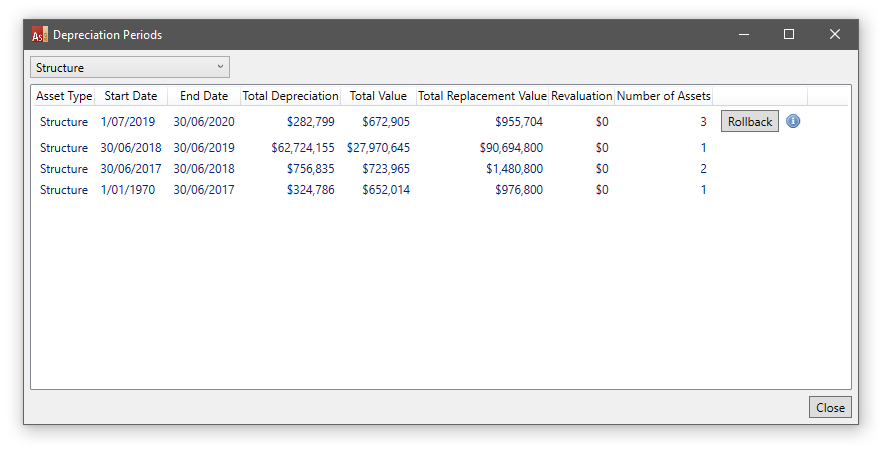
 You will see the results of this (and previous) depreciation periods. These periods can be rolled back by clicking the rollback button, but must be done in order, so the most recent period can be rolled back, and then the next most recent.
Depreciation Report
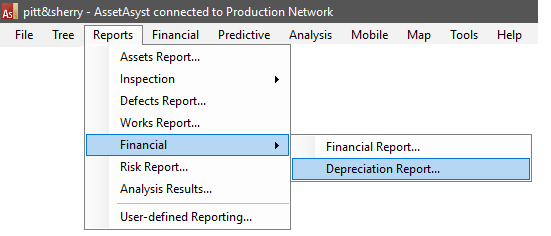
To view a report of a depreciaton run, click the Depreciation Report menu item.
 Select the desired depreciation period, then click the Search button.
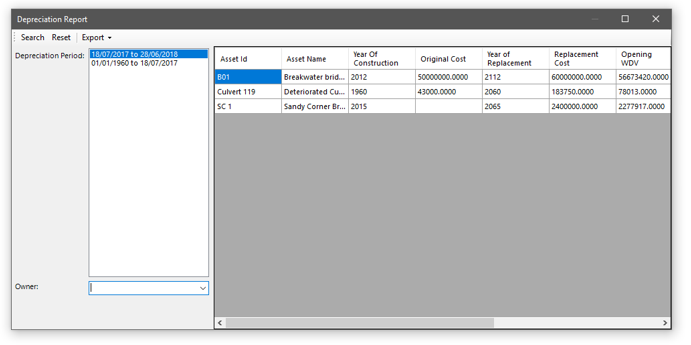 To export to Excel, drop down the Export button and choose Report.
Depreciation Methodologies
AssetAsyst® offers two methodologies for depreciation. The first is traditional straight-line depreciation. The second methodology leverages the power of the predictive modelling module.
 Using the second option, “Straight Line (update useful life based on predictive modelling)”, AssetAsyst® will use the predictive modelling tool to determine the useful life of the asset based on its condition (current and predicted into the future, ). This provides a more accurate year of replacement and residual value than the defaults that come from the structure class.