
Inspection Setup
Inspection Types / Categories
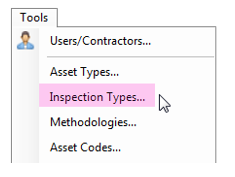 Inspection Types allow you to categorise the inspections your organisation is required to do. These can be set for each type of asset by selecting Inspection Types from the Tool menu.
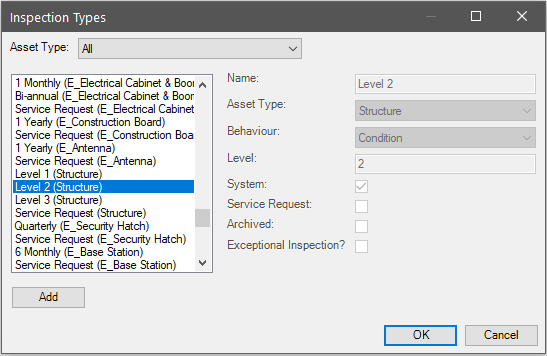
When setting up a new inspection type, a behaviour must be assigned. There are three available behaviour types to choose from:
- Simple. Defects can be collected, and units of assets marked inspected.
- Condition. Components of an asset must be condition-assessed. Defects can be collected.
- Checklist. Users are required to fill in a checklist of items. Defects can be collected. AssetAsyst®, comes with some pre-defined “system inspection types”. There are read-only. They cannot be altered or deleted.
Level 3 structure inspections also have a category field, which can be filled in. The default values for this field are programmed, exceptional, and underwater, but these can be customised in the “Asset Codes” form in the Tools menu.
Exceptional inspections will allow the user to sign off even if not all units have been assessed/inspected.

Inspection Patterns
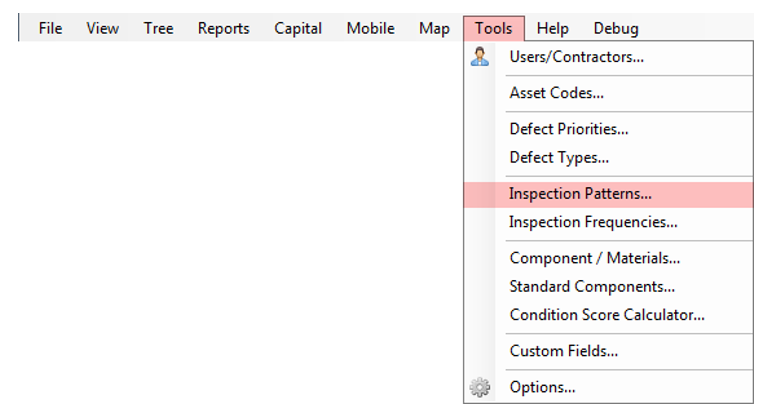
Inspection Patterns can be entered in the “Recurrence Setup” form. This forms allows you to create and choose your own time patterns reflected in your road management plans.

To add a new pattern, Click New, you will need to enter a Pattern Name that reflects your recurrence pattern. Select a recurrence pattern - one of the daily, weekly, or monthly checkboxes and then enter a number into the Every box to indicate the desired inspection frequency.
You can click the Test Dates button to determine the next date the inspection will fall due. To cycle through and edit your patterns use the arrows buttons.
Inspection Frequencies
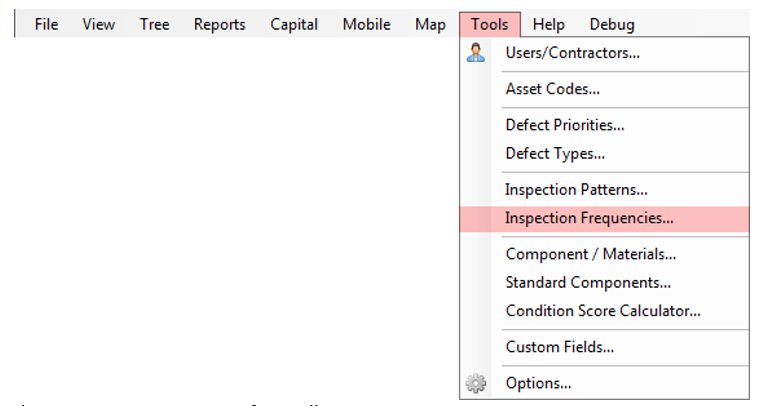
The Inspection Frequency form allows you to assign an inspection pattern against each of your maintenance categories (or hierarchy). If you have multiple inspection types (e.g. night time, daytime 10% network audit), you can assign a different pattern for each maintenance category.
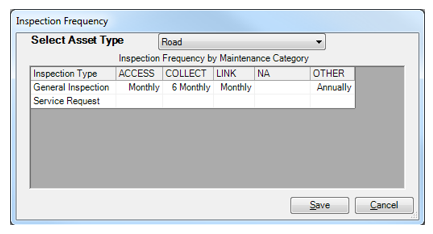
To assign a pattern from the Inspection Patterns form, click in the box and choose from the drop down menu. Completing this form will allow the Inspection Wizard to automatically predetermine the required inspection frequency for any given set of roads.
Inspection scheduling is explained in Section 3 – 3 Inspections