Asset Risk Score
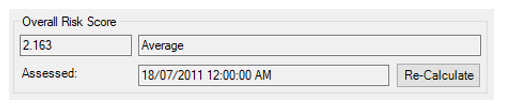
AssetAsyst® features pitt&sherry’s proprietary risk scoring algorithm. You can find it on the Generic Data tab of the Structure Asset form.
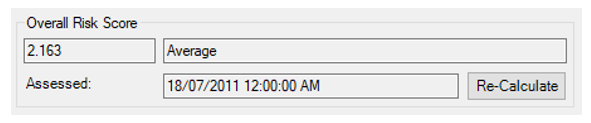
The overall risk score can be calculated for each point asset that has been inspected. The algorithm makes use of a number of parameters. These should be configured in a considered manner for best results.
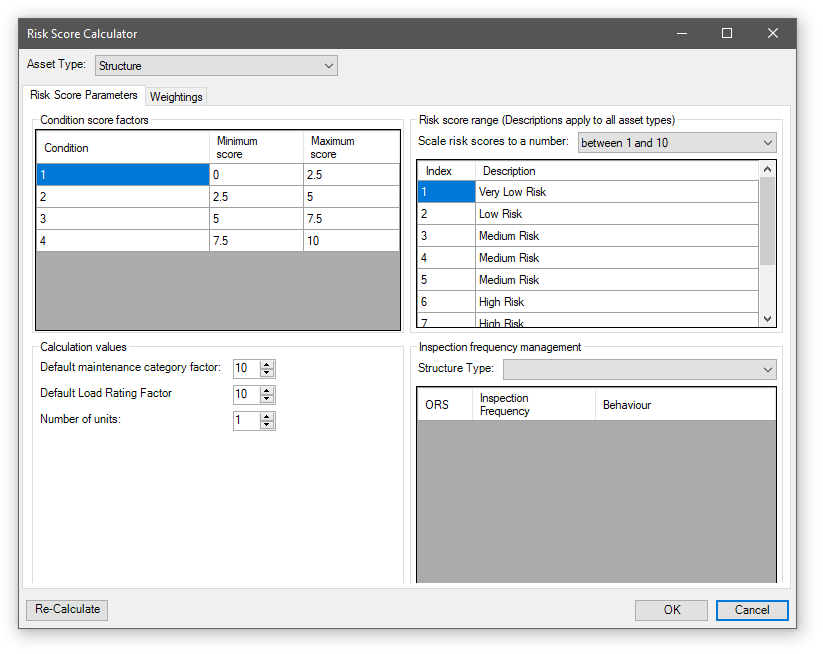
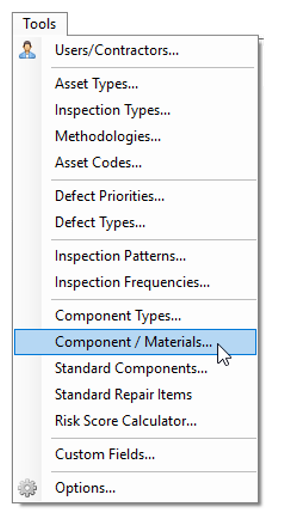
To configure the risk score parameters, choose Tools | Risk Score Calculator.
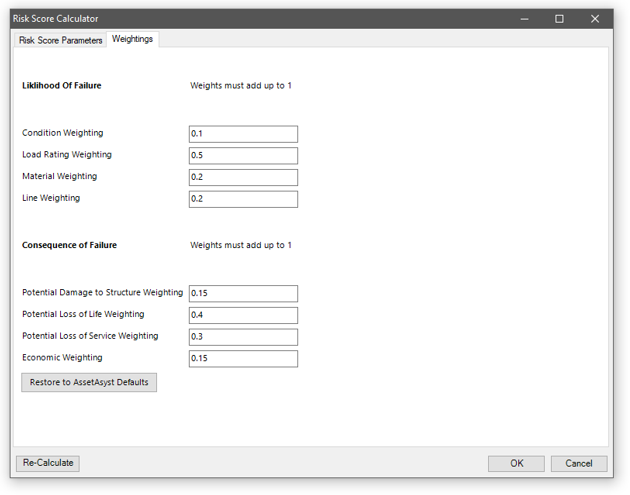
The Risk Score Calculator form is divided into two tabs. The first allows you to define the various parameters that drive the algorithm. The Weightings tab allows you to choose the relative importance of different parameters.
The risk score of an asset is based on:
- The physical condition of each of the asset's units the last time the asset was inspected.
- The maintenance category for the road or footpath the asset is on (structure assets).
- The load rating (for structures) or general capacity factor (for other assets).
- The condition 4 equivalent, a normalising factor for overall risk score.
- The number of units considered for the calculation.
In order to give a meaningful result, all parameters that feed into the risk score calculation should fall within the range 0 to 10.
Weightings
The factors that make up the risk score of a unit are weighted by priority. You can change the priority by adjusting the weightings. At any time, you can click the "Restore to pitt&sherry Defaults" button to reset the weightings to those recommended by the engineers who developed this software. Weightings within a section must add up to 1. The factors are listed below.
- Probability of Failure:
- Condition Factor – based on Level 2 inspection condition by component.
- Load Rating Factor
- Material Factor – depending on material type there is a different rating
- Line Factor – based on usage and importance of a bridge to the network.
- Consequences of Failure:
- Potential to damage the asset
- Potential loss for life
- Potential loss of service
- Economic factor
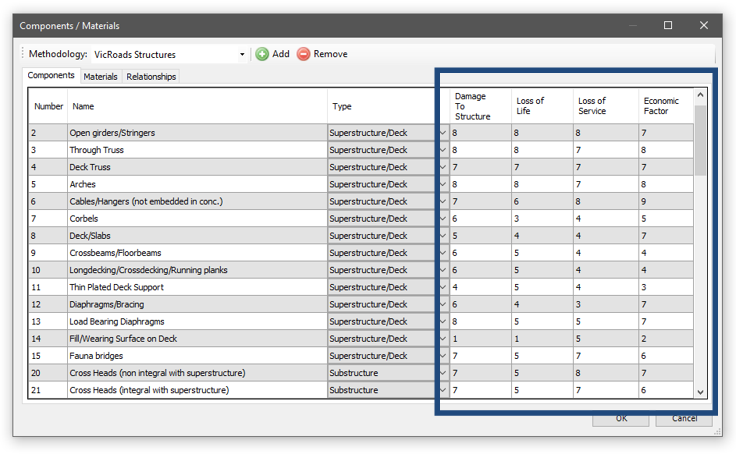
The consequence values are drawn from the components of the asset. These can be viewed and altered in the Component Materials form.
Condition of asset units
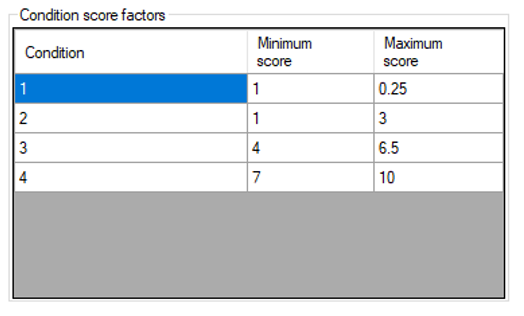
When an asset is inspected, each of the asset's units is scored according to its physical condition. Usually, a unit in Condition 1 is in good condition while a unit in Condition 4 is in poor condition. Each unit's risk score contributes to the overall score for the asset. However, it is possible for some units to have a greater contribution to the overall risk score than others. For example, if you wanted units in poor condition to have a greater effect on the overall risk score than units in good condition, you would assign a greater condition score factor for condition 4 than for condition 1.
The risk score calculator represents score factors as ranges between a minimum and maximum score. If condition 3 has a range between 4 and 6.5, this means that the score for a unit in condition 3 is multiplied by the maximum score, and if the result is less than the minimum score, then the result is set to the minimum score.
Maintenance Category / Line Factor
A structure asset like a bridge is considered to be part of a linear asset like a road. Each linear asset has a maintenance category which determines the importance of maintenance. For example, a busy main road might have a higher maintenance category than a suburban street indicating that it is a higher priority for maintenance issues. The maintenance category of the linear asset is considered in the overall risk score. When a maintenance category is not yet assigned for the linear asset the structure is on, the default maintenance category factor is used in the calculations.
Other asset types do not use the maintenance category of the line, they simply use the maintenance category of the unit/asset itself.
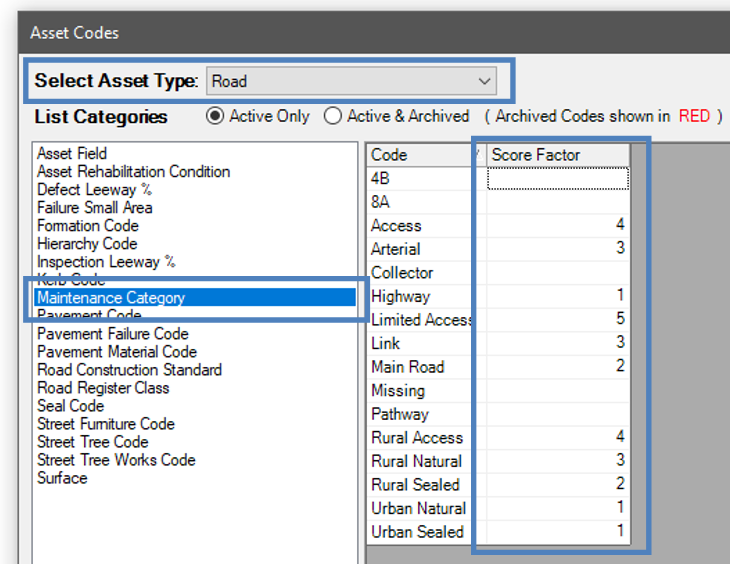
You can also specify a default line factor, for lines that do not have a score specified on their maintenance category. This is found on the Risk Score Calculator Risk Score Calculator form.

Load Rating
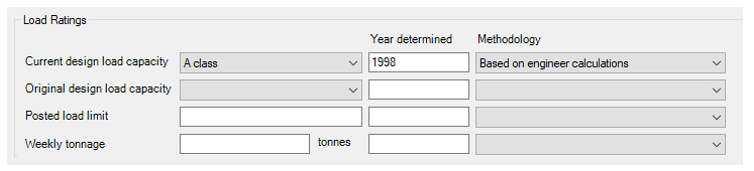
Each structure has a Load Rating, which is set according to the load capacity of the structure when the structure was designed or last assessed. Each load rating has a factor which determines the contribution of the load rating to the overall score. When no load rating has been determined for the structure, the default load rating factor from the risk score calculator is used.
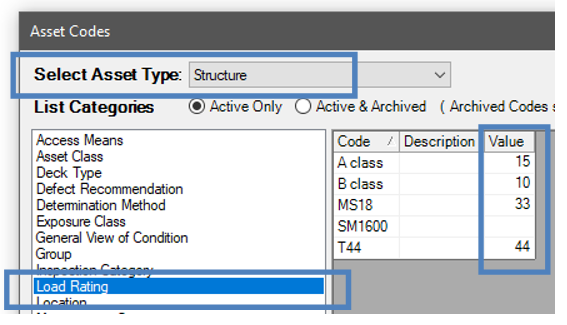
To set the score factors, open the Asset Codes form from the Tools menu. Select the Structure asset type, then the Load Rating category, and enter the desired scores into the Value column.
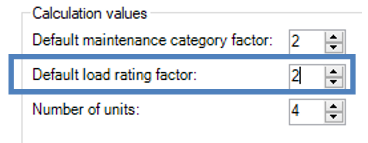
You can also specify a default load rating factor for structures that do not have a load rating with a score.
For other asset types, the capacity factor can be found on the Risk tab of the asset info form.
Number of Units
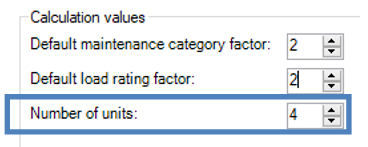
This value allows you to limit the number of units that are considered in the risk score calculation. If there are 20 units on an asset, and this value is 10, only the top 10 units are considered in the calculation. This allows you to reduce the impact of many similarly-scored units.
Condition Score Range
Once the overall risk score is calculated, it can be further normalised to one of the following ranges:
- Between 1 and 4, with 4 being poor.
- Between 5 and 1, with 1 being poor.
- Between 1 and 5, with 5 being poor.
- Between 1 and 10, with 10 being poor.
Re-Calculating Risk Scores
When you change the settings in the risk score calculator form (or the asset codes form), any future risk score calculations will be calculated using the new configuration, but previous risk scores will be preserved historically.
However, there may be cases where you want to bulk update all assets’ risk scores. To do this, you can use the Re-Calculate button in the bottom left-hand corner of the settings form. Note: This will take a long time to run.
Re-calculate will update the Overall Risk Score for all Structures and Custom Assets. It does this by re-assessing the Overall Risk Score for the most recent Condition Inspection and then applies that figure to the Asset.
You can also re-calculate a single asset from the Generic Data tab.