
Code Tables
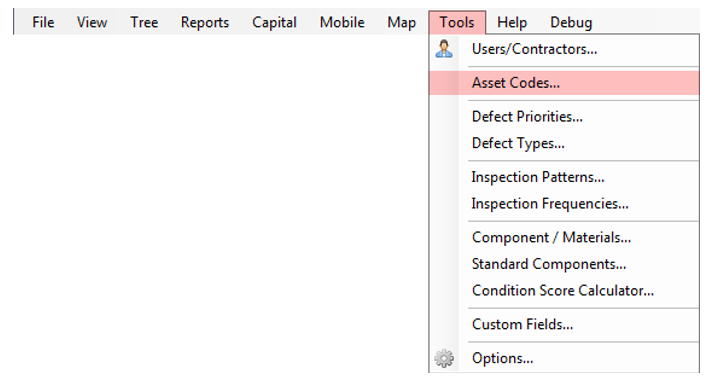 To alter codes or add new codes, click the Tools > Asset Codes menu item.
General Codes
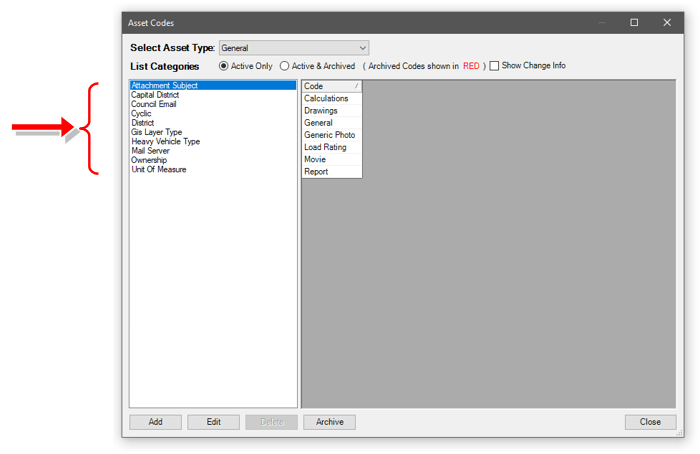
This General option contains basic setup information. The user should take the time to fill in to gain maximum benefit from the support provided by the AssetAsyst® production team. Cyclic and GIS Layer Type These are unable to be edited. District & Ownership These are list fields that should be populated to ensure unit information is current.
Road Codes
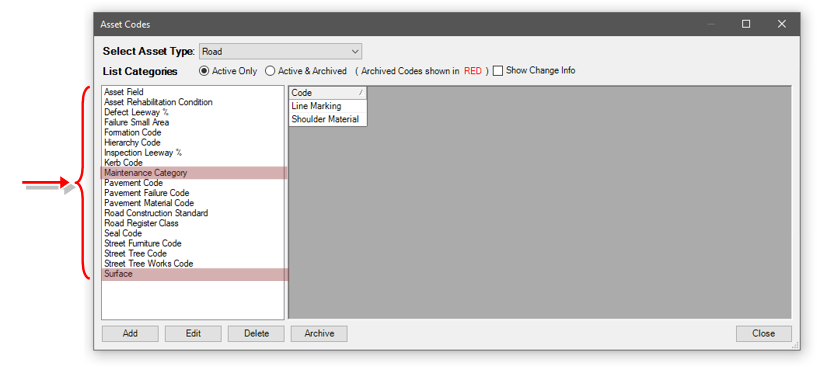 The red highlighted List Categories are important for RoadAsyst® in an operational sense. The remainder are critical for the Capital Editor and the capital aspect of AssetAsyst® with respect to roads.
In previous versions, the component and Inspection Type lists could be found here. They have now been moved to their own forms in the Tools menu, under Component Materials and Inspection Types respectively.
Maintenance Category
Each segment must be assigned a Maintenance Category (or Hierarchy). The Maintenance Category refers to the group of defects an Authority may have assigned as part of an asset maintenance plan. All assets to be inspected will require a Maintenance Category value to be set.
For some authorities Maintenance Category can be seen the same as hierarchy.
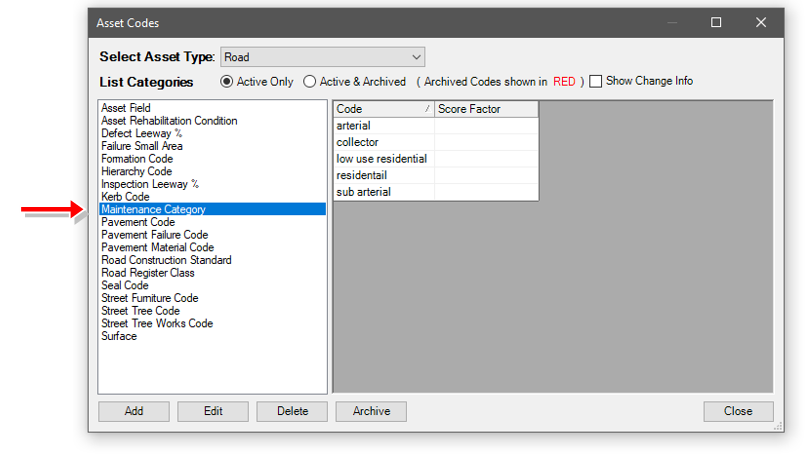
The new maintenance category can be added to the list and then manually added to the relevant assets or units. An alternative method is to edit an existing maintenance category; this will replace any segments containing that category with the new one.
Pathway Codes
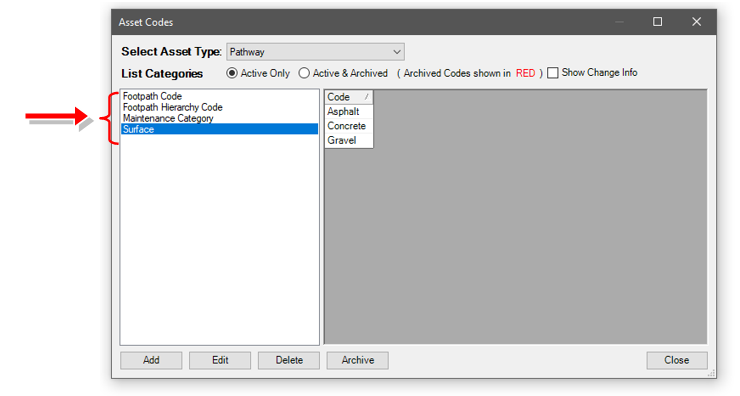
Pathway code table is less complex compared to the road code table. There are limited List Categories to edit.
Building Codes
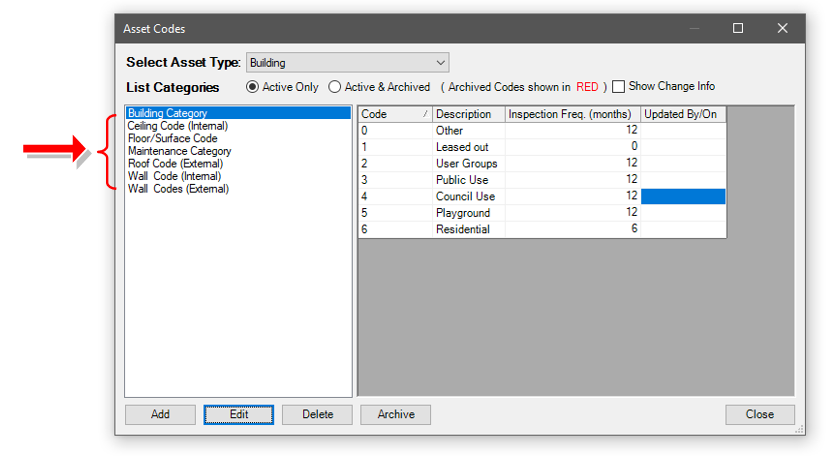
The build asset type also has its own set of codes. Again, like pathways, these are less complex than the road codes.
Many of the building asset codes represent material types for the various parts of a building such as ceiling, roof, and internal and external walls.
Bridge Codes
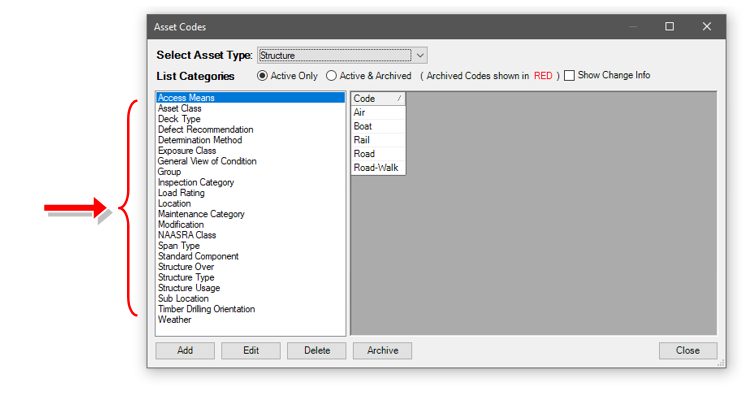
As with the other asset codes, the bridge asset codes are used to provide information that help to define the asset. These may relate to span types, crossing or provide more information for defects/inspections.
Asset Class
The Asset Class code list is relevant to structure assets. It defines various different types of structure. The default values are Bridge, Culvert and Marine Structure. You can add custom types to this list (for example footbridge or retaining wall). For each of these new asset classes you add, you must specify which of the base asset classes it behaves like.
Simply enter the behaviour code in the value column next to the asset class.
The behaviour codes can be seen below:
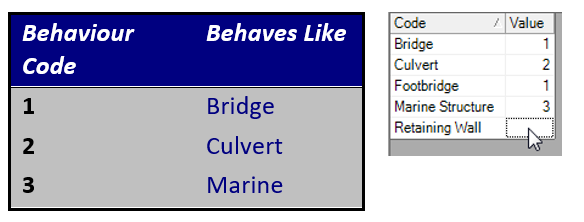
For example, you may want the “footbridge” asset class to behave like a bridge, so you would enter the number 1 into the value column.
The behaviour specifies what geometry fields are collected for the asset. It is also used to categorise assets in some reports.
Custom Asset Codes
Custom assets come with several pre-created asset code lists. Maintenance category behaves the same way it does with every other asset type. Exposure class operates the same as structure assets.

Location and Sub Location allow components and defects to be located within the asset. Sub location items can be filtered by a parent location item, by placing the code of the location in the "location code" column of the sub location.
