Work Orders
Work Orders are used to manage the resolution of defects. AssetAsyst® offers two types of work orders: Basic and Advanced. Basic work orders are useful for performing ad-hoc works in response to individual defects.
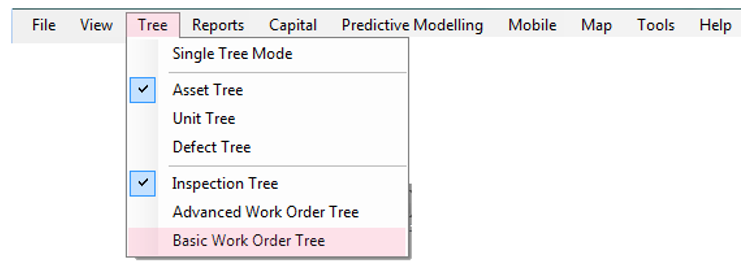
To access the Basic Work Order Tree, click the Tree menu and then Basic Work Order Tree. Operationally, works orders can remain open or be closed depending on the preference of the user.
Following input of observed defects, Work Orders can be used to schedule rectification works to an individual or maintenance team.
Basic Work Order Tree
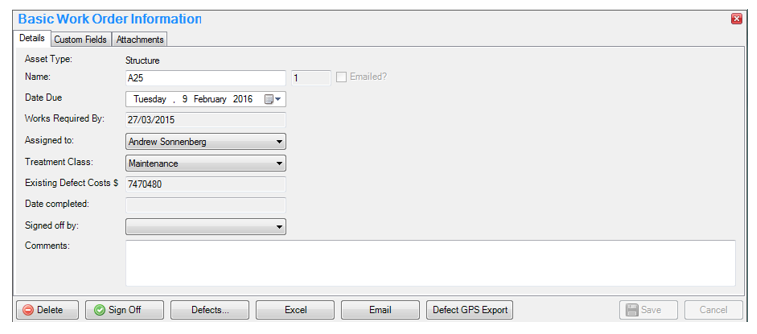
Each Basic Work Order stores defects against it. To show defects attached to the work order in the map, select the work order item in the tree, the map will automatically zoom to the extent of defects containing map coordinate data.
New Work Order
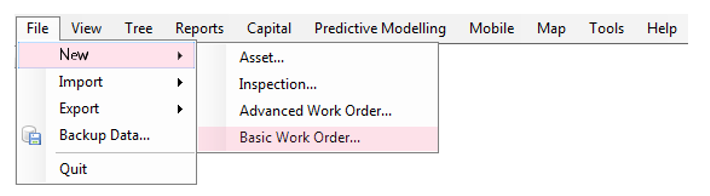 Click File > New > Basic Work Order to initiate the creation of a work order.
Works Order Information Pane
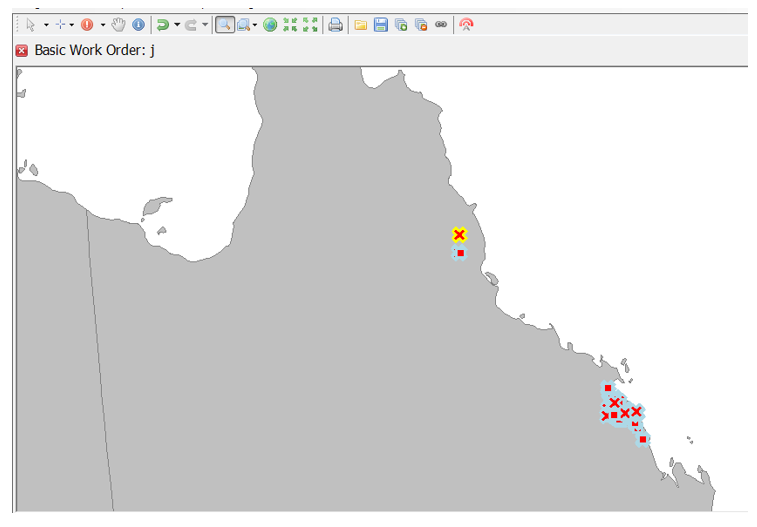
Each Basic Works Order is required to have a name, due date and assigned to an officer. Defects can then be added to the work order and then exported to a spreadsheet.
AssetAsyst® will suggest a “Works Required By” date. This is calculated from the due dates of the attached defects. The manually entered due date may be no later than the calculated “Works Required By” date.

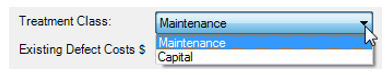
A basic work order can be coded as either maintenance or capital. Select this by dropping down the “Treatment Class” box.
Allocate Defects to Works Orders
To allocate defects to the selected Work Order, click the Defects button.

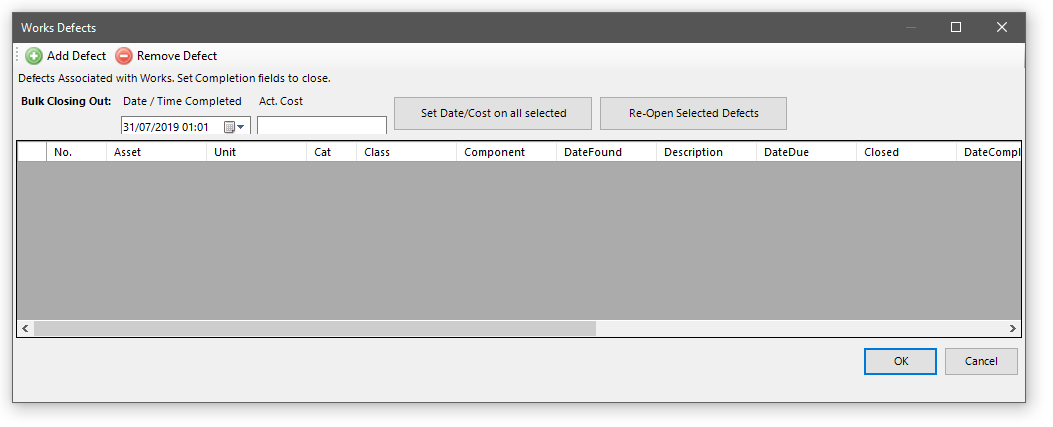
A form will open displaying all defects currently attached to this basic work order. If it is a new work order then the grid will be empty.
To add defects, click the “Add Defect” button.

A new form will open. Use the filters down the left hand side, and the Search button, to find the defects you want.
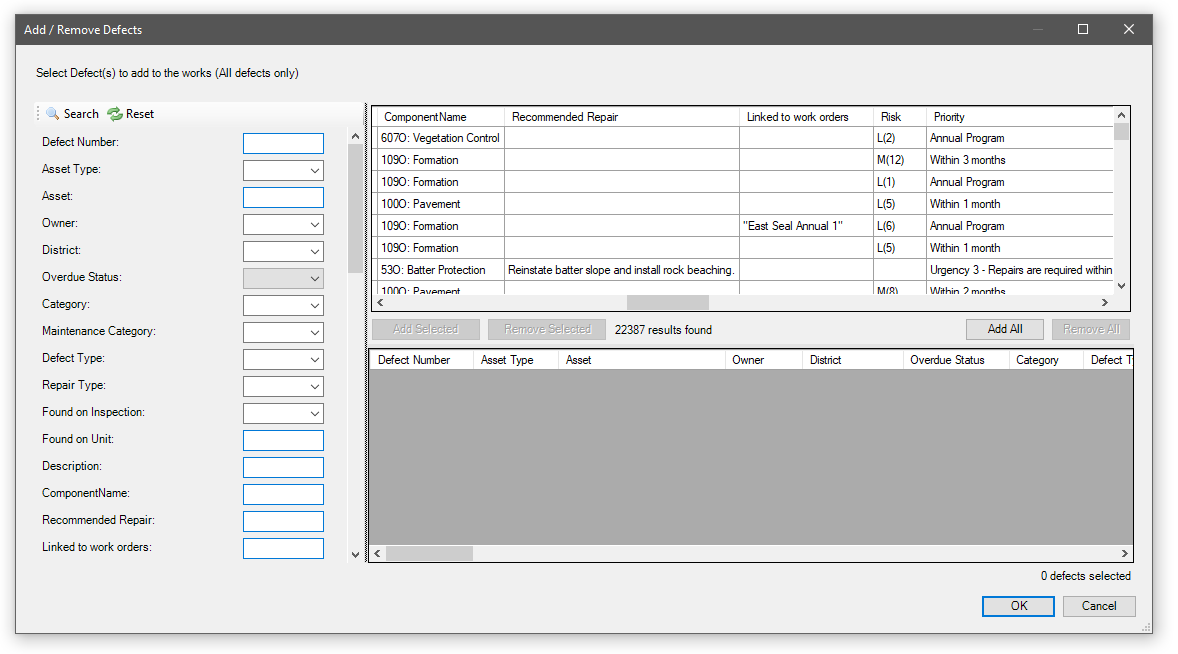
Then, click the “Add All” button, or select the desired defects and click the “Add Selected” button. The chosen defects will move from the top grid to the bottom grid.

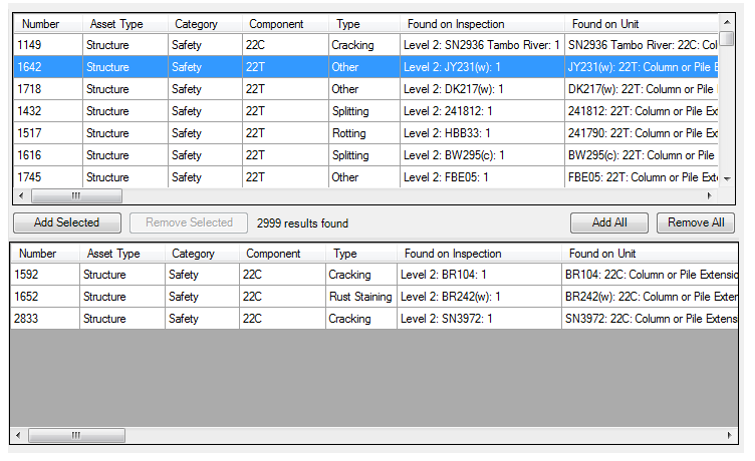
Click OK and the defects will be added to the basic work order.

Print a Works Order
You can print a Works Order by clicking the Excel button on the main panel. If you wish to view a customised export of the works data, you can use the User-Defined Reporting tool from the Reports menu.
GPS Export
Once defects have been assigned to a work order, you can export the GPS coordinates of these defects into a variety of formats. Click the GPS Export button.

Select from one of three popular file formats. KML and KMZ are ideal for viewing in Google Earth. GPX is supported by a number of car navigation devices.

Complete a Defects
When a defect is closed, the defect record remains connected to the asset, the inspection and the work order. Mandatory information that is stored at the time of closing a defect includes; date and time and actual cost, non-mandatory information includes quantity and unit of measure. Users can close defects by nominating defects to close via the map, or the Defects screen. In addition to defects fixed on work orders, an inspector can close defects at the time of observation.
Not Using Map
To complete a defect, click on the Defects button.
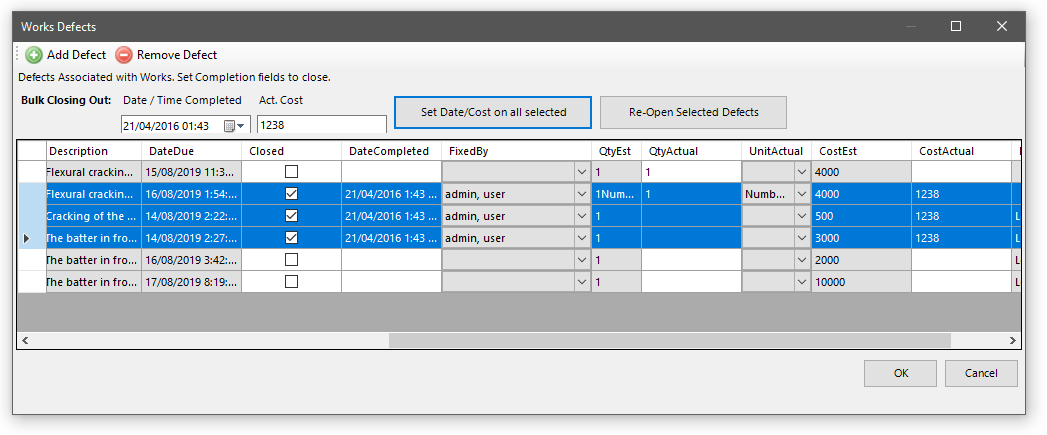
Once again you will see the defects pop-up form. To complete a defect, tick the checkbox in the “Closed” column. The date completed and fixed by columns will be pre-filled for you, but you can override these values if desired. Enter an actual quantity and actual cost.
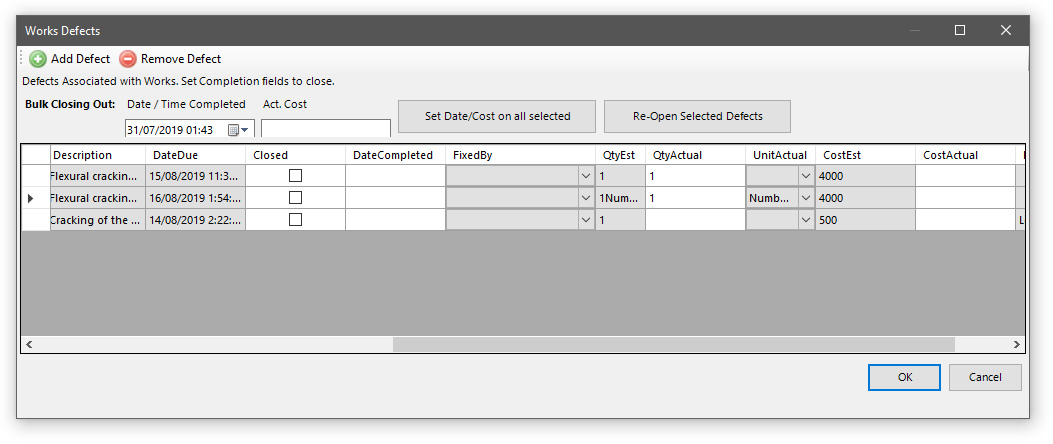
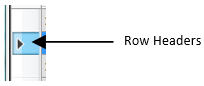
To bulk close defects, select some defects using the row header. Then enter a date/time and cost into the control at the open, then click the “Set Date/Cost on all selected” button.

Using Map
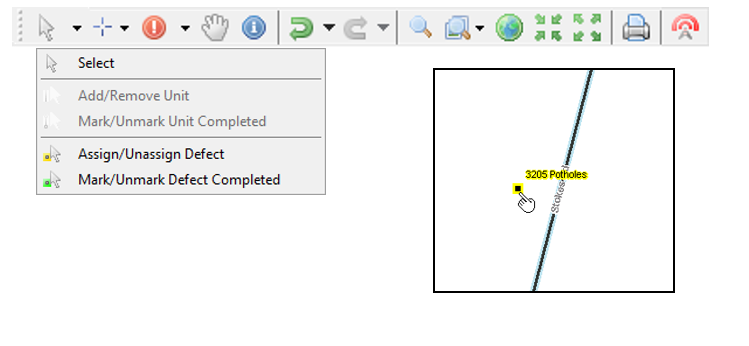
Select a Work Order from the Tree, select the option Mark/Unmark Defect Completed from the map toolbar Select menu, and select one or more defects in the map window. This will close the defect and open the Defects form for entry of additional details such as actual cost and quantity.
Sign off a Work Order
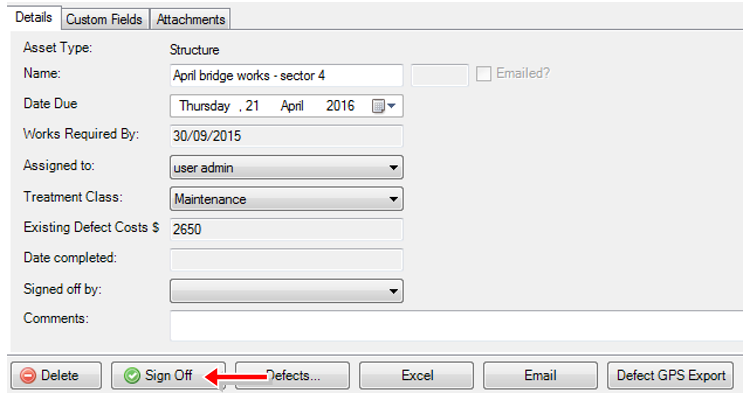
As with inspection sets, users can Sign Off a works order. Clicking the Sign Off button will archive the works order. Any defect which has not been completed on the signed off work order will be returned to the pool of defects not attached to any works order. Those defects can then be allocated to another open work order.